Welcome! Now that you're logged in, you can download the CloudQA Chrome Extension to start creating tests.
Download CloudQA Chrome Extension
DocumentationHere’s how you can create your first test case using CloudQA's Test Recorder:
You can quickly run test cases directly in your local browser using the Run Locally feature on the Edit Test Case page.
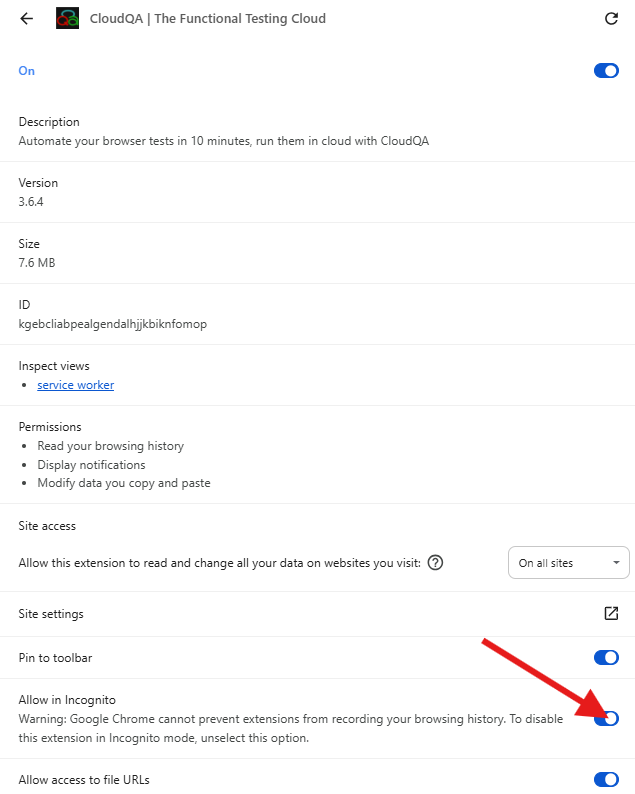
Important: Before running tests locally, you must enable Incognito mode for the CloudQA Chrome Extension.
chrome://extensions in your Chrome browser.Steps to run locally:
This is ideal for testing changes quickly without executing the full test on the cloud.
Quickly snap a bug using CloudQA's Test Recorder:
Save your bug with details, and it will appear under the Bug Snaps menu in the application.
Here you can manage all your created test cases. You can execute, edit, tag, and prioritize your test cases with ease. Follow these steps to get started:
Navigate to the Executions page to view the test cases executions.
What is a Test Suite?
A test suite is a collection of test cases intended to test a specific aspect or component of an application.
Follow the steps below to schedule your test suites:
Before starting your test, please close any open Incognito windows.
This ensures accurate test execution and browser control.
CloudQA runs tests in an incognito window to safely clear cookies, cache, and session before each test.
Go to extension settings, scroll down, and enable "Allow in incognito".
You can continue with local execution.